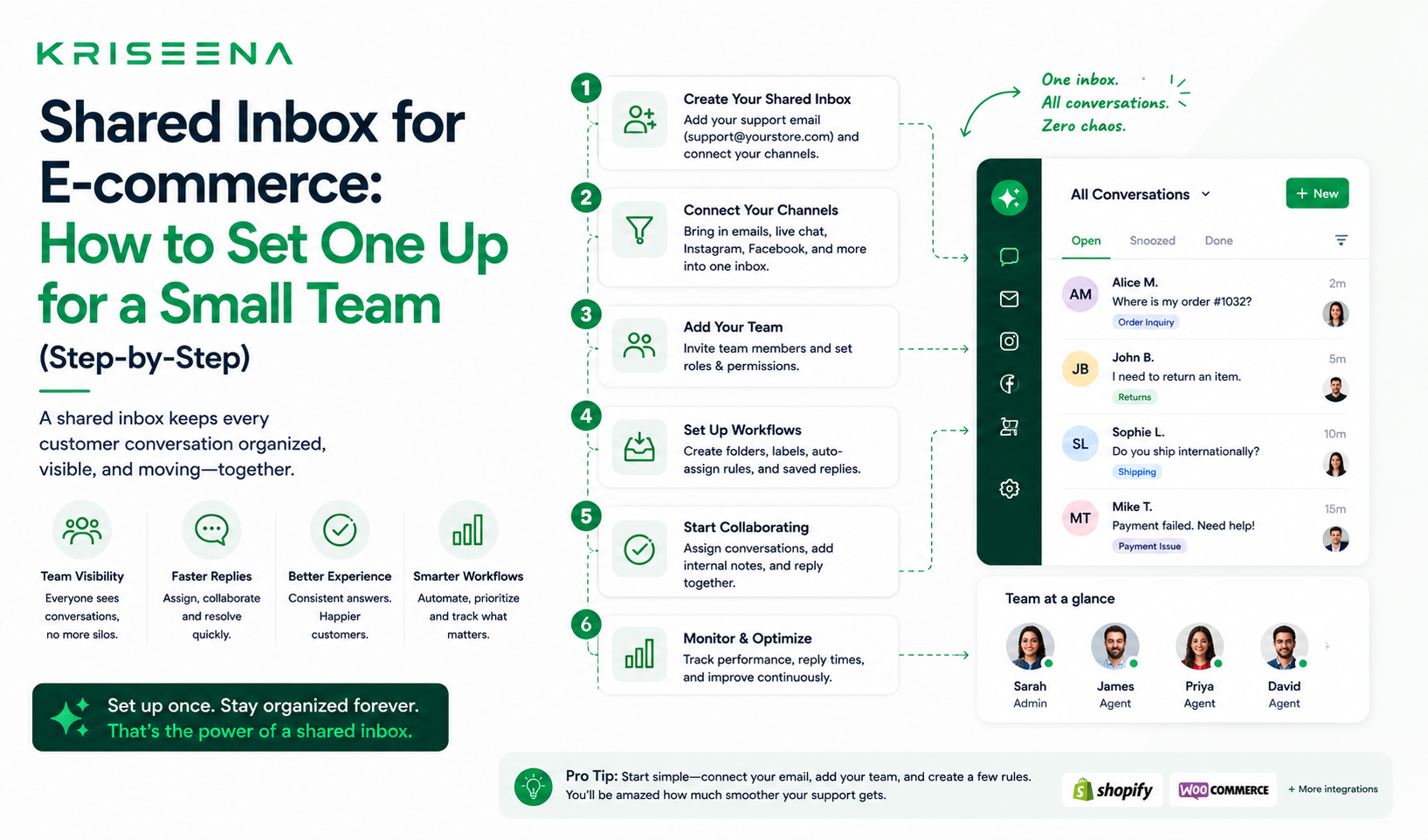
Shared Inbox for E-commerce: How to Set One Up for a Small Team (Step-by-Step)
If you are running an e-commerce business with two or more people handling customer support, you have probably experienced the chaos of a shared Gmail account. Multiple people logging into the same inbox. Emails getting replied to twice. Urgent messages getting missed because everyone assumed someone else saw it. No visibility into who is handling what.
A shared inbox solves this. This guide explains what a shared inbox is, how to set one up for a small e-commerce team, and how AI makes it work even better.
What Is a Shared Inbox?
A shared inbox is a single customer-facing email address (like support@yourstore.com) that multiple team members can access, respond to, and manage collaboratively — with visibility into who is doing what.
Unlike a shared Gmail account, a proper shared inbox includes:
- Assignment — conversations are assigned to specific agents so it is clear who owns each one
- Status tracking — open, in progress, resolved — so nothing gets lost
- Collision detection — warnings when two people are looking at the same conversation
- Internal notes — agents can comment on conversations without the customer seeing
- Performance visibility — who responded to what, how quickly, and what the outcome was
Why E-commerce Teams Need a Shared Inbox
E-commerce support has specific characteristics that make a shared inbox more valuable than in other industries:
Volume spikes unpredictably. A product goes viral, a sale launches, a courier delays — and ticket volume doubles overnight. A shared inbox lets any available team member jump in without confusion about ownership.
Order context matters for every query. When a customer emails about order #4821, whoever responds needs to see the order details immediately. A shared inbox connected to Shopify or WooCommerce surfaces this automatically.
Multiple channels, one conversation. A customer might chat on your website and then follow up by email. A shared inbox should treat both as the same conversation, not two separate tickets.
Speed is expected. E-commerce customers expect replies within hours, not days. A shared inbox with assignment and status tracking reduces the risk of messages sitting unread while team members assume someone else handled it.
Option 1: Gmail Shared Inbox (Simple Setup)
If you have a Google Workspace account, the simplest version of a shared inbox is a shared Gmail address (support@yourstore.com) with multiple users delegated access.
Setup steps:
- Create a Google Workspace account if you do not have one
- Create a support@yourstore.com address in your Google Workspace admin
- Go to Gmail → Settings → Accounts → Grant access to your account for each team member
- Team members can now access the inbox from their own Gmail accounts via the dropdown
Limitations: This is a starting point, not a solution. It has no assignment, no status tracking, no collision detection, and no performance visibility. Fine for two people with low volume. Breaks down quickly as volume grows.
Option 2: Dedicated Shared Inbox Tool (Recommended)
Tools like Kriseena, Help Scout, Front, and Freshdesk provide a proper shared inbox with all the collaboration features a small team needs.
For e-commerce teams specifically, Kriseena is designed around the workflows that matter: order lookup, AI auto-replies for WISMO, Gmail OAuth connection, and a unified inbox for chat and email.
Setup steps for Kriseena:
Step 1: Create your account and add team members Sign up at kriseena.com. Go to Settings → Team → Invite members. Add each team member's email address and assign them as Agent or Admin.
Step 2: Connect your Gmail support inbox Go to Settings → Channels → Gmail → Connect. Authorise Kriseena to access your Gmail account via OAuth. All emails to your support address will now appear in the Kriseena shared inbox automatically.
Step 3: Add the chat widget to your website Go to Settings → Widget → Installation. Copy the snippet and paste it before the closing body tag in your website theme. Live chat conversations will now appear alongside email in the same inbox.
Step 4: Connect your store Go to Dashboard → Integrations. Connect Shopify (OAuth) or WooCommerce (REST API). Order data will now appear automatically in conversations where the customer mentions an order or their email matches an order record.
Step 5: Set up AI Go to Knowledge Base → Add your first articles (returns policy, shipping times, FAQ). The AI will start using these to draft or auto-reply to common questions.
How to Use a Shared Inbox Effectively as a Team
Assign everything. Every open conversation should be assigned to one person. Unassigned conversations are at risk of being missed.
Use internal notes, not forwarded emails. When you need a colleague to look at something, add an internal note to the conversation rather than forwarding the email. This keeps the full context in one place.
Set statuses consistently. Open = needs a response. In progress = waiting for the customer. Resolved = done. Every team member should use the same definitions.
Review the unassigned queue first. Start every support session by looking at unassigned conversations. These are the ones most likely to fall through the cracks.
Use AI drafts to speed up responses. If your tool drafts AI replies, reviewing and approving a draft is faster than writing from scratch. Train the AI on your most common query types to get the most value.
The Impact on Response Times
A properly configured shared inbox with AI drafts consistently reduces average response time by 60 to 80 percent compared to a shared Gmail account without tooling.
The biggest gains come from: AI handling WISMO and policy queries automatically (no agent time at all), agents reviewing drafts instead of writing from scratch (30 seconds vs 5 minutes), and clear assignment preventing messages from sitting unread (response gaps eliminated).
For a small e-commerce team doing 20 to 50 support contacts per day, this translates to 2 to 4 hours of recovered agent time per day — time that can be spent on growth, not inbox management.
Set up your shared inbox today. Kriseena's 14-day free trial includes Gmail integration, shared inbox, and AI drafts from day one. No credit card required.