
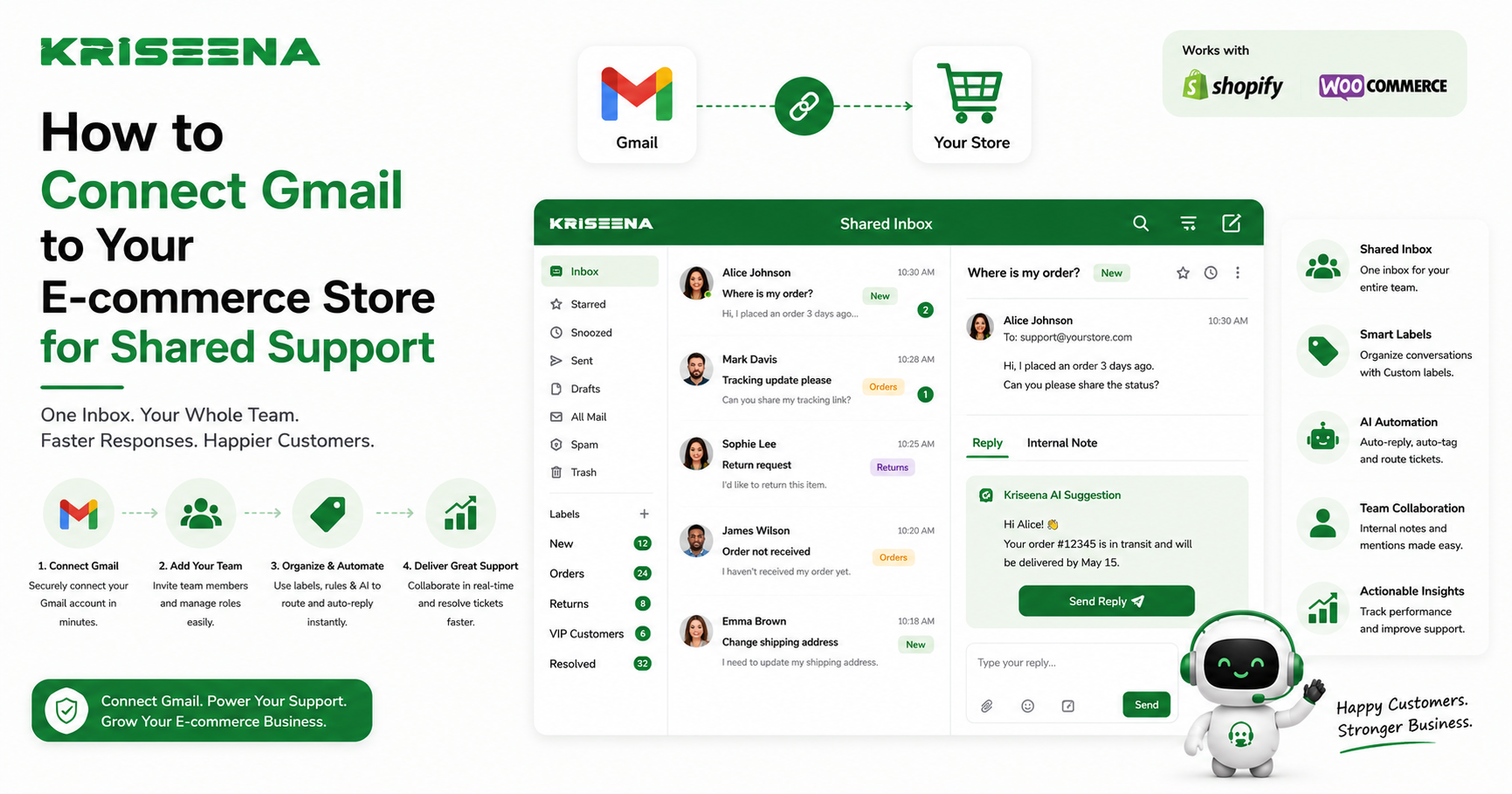
If your customer support still relies on a personal Gmail account, you're making support harder than it needs to be.
As your Shopify or WooCommerce store grows, more people start handling customer emails. One person answers shipping questions, another processes refunds, and someone else manages returns. Without a shared workflow, emails get missed, customers receive duplicate replies, and no one knows who owns a conversation.
The good news is that you don't have to abandon Gmail.
With the right setup, Gmail can become a shared support inbox that works for your entire team. In this guide, you'll learn why shared inboxes outperform personal email accounts, how to connect Gmail securely using an App Password, and the best practices for organizing and routing customer conversations.
Why Personal Gmail Accounts Stop Working
When a store is small, using a personal email like:
inside Gmail feels perfectly adequate.
Problems appear once multiple team members need access.
Common issues include:
- Two agents replying to the same customer
- Important emails getting buried
- No visibility into who's handling what
- Slow response times
- Customers having to repeat information
- Difficult onboarding for new support staff
Customer support should be collaborative. Personal inboxes were never designed for that.
Why a Shared Inbox Is Better
A shared inbox lets multiple team members work from the same support email without creating confusion.
Instead of forwarding emails or sharing passwords, everyone sees the same conversations while the helpdesk keeps track of ownership and status.
Benefits include:
Clear Ownership
Each conversation is assigned to a team member.
Everyone knows who's responsible, eliminating duplicate replies.
Faster Response Times
New emails are visible immediately.
The next available agent can respond instead of waiting for one specific person.
Better Collaboration
Agents can leave internal notes, ask teammates questions, and transfer conversations without the customer seeing internal discussions.
Complete Conversation History
Every interaction stays attached to the customer.
If a shopper contacts support again next month, any team member can see previous conversations instantly.
Performance Tracking
A shared inbox allows you to measure:
- Response times
- Resolution times
- Open conversations
- Agent workload
- Customer satisfaction
These insights simply aren't available in a standard Gmail inbox.
Can You Use Gmail as a Shared Inbox?
Yes.
You don't need to migrate away from Gmail.
Instead, connect Gmail to a helpdesk platform that adds collaboration features while Gmail continues receiving emails as usual.
Your customers keep emailing:
Nothing changes for them.
Behind the scenes, the helpdesk manages assignments, labels, automation, and team workflows.
Connecting Gmail Using an App Password
Many helpdesk platforms support Gmail integration.
One of the simplest approaches is connecting Gmail with an App Password.
This keeps your Google account secure while allowing the helpdesk to access your support mailbox.
Step 1: Enable Two-Factor Authentication
Google requires two-factor authentication before App Passwords become available.
If you haven't enabled it already:
- Sign in to your Google Account.
- Open Security.
- Enable 2-Step Verification.
Step 2: Create an App Password
After enabling two-factor authentication:
- Open your Google Account settings.
- Navigate to Security.
- Open App Passwords.
- Create a new app password.
- Copy the generated 16-character password.
This password will only be shown once.
Store it securely.
Step 3: Connect Gmail to Your Helpdesk
Inside your helpdesk:
- Enter your Gmail address
- Paste the App Password
- Verify the connection
Once connected, incoming emails begin syncing automatically.
Outgoing replies continue using your Gmail address, so customers never notice any difference.
Using Kriseena with Gmail
Kriseena connects to Gmail natively, allowing e-commerce stores to continue using their existing Gmail support address without changing customer-facing workflows.
Once connected, Kriseena turns Gmail into a collaborative support workspace with features such as:
- Shared inbox management
- AI-powered customer replies
- Conversation assignment
- Internal notes
- Order-aware responses
- Team collaboration
- Customer history
- Automated routing
Instead of replacing Gmail, Kriseena builds on top of it, making it easier for support teams to work together while keeping the familiar email experience customers already use.
Best Practices for Organizing Gmail Support
Simply connecting Gmail isn't enough.
A few organizational rules make support dramatically more efficient.
1. Use Labels Consistently
Labels make it easy to organize conversations.
Examples include:
- Orders
- Returns
- Refunds
- Shipping
- Wholesale
- Technical Issues
- Product Questions
Avoid creating dozens of labels.
Five to ten clear categories are usually enough.
2. Assign Every Conversation
Every support email should have one owner.
Unassigned conversations often become forgotten conversations.
If your helpdesk supports automatic assignment, enable it.
3. Route Conversations Automatically
Not every email belongs with the same person.
Examples:
Shipping questions → Fulfillment team
Refund requests → Billing
Wholesale inquiries → Sales
Technical problems → Support specialists
Automation removes manual triage and speeds up first response times.
4. Prioritize Urgent Emails
Some messages deserve immediate attention.
Examples include:
- Payment failures
- Order cancellations
- Fraud reports
- VIP customers
- Negative customer experiences
Automatically flag these conversations so they move to the top of the queue.
5. Create Saved Responses
Many e-commerce questions repeat every day.
Examples include:
- Where is my order?
- How do I return an item?
- Can I change my shipping address?
- When will my refund arrive?
Instead of rewriting the same replies repeatedly, create reusable templates.
Many helpdesk platforms can personalize these automatically with customer names and order details.
6. Keep Internal Discussions Private
Never discuss internal decisions in customer-facing replies.
Use internal notes instead.
This keeps communication professional while allowing teammates to collaborate.
7. Review Open Conversations Daily
A shared inbox only works if conversations don't remain unresolved.
Create a routine to review:
- Open tickets
- Waiting on customer
- Waiting on internal team
- Overdue responses
This prevents customers from slipping through the cracks.
Common Mistakes to Avoid
Sharing Gmail Passwords
Never share one Gmail password across your team.
Each employee should have their own account while the helpdesk manages access securely.
Ignoring Labels
Without organization, even shared inboxes become cluttered.
Labels make reporting and routing significantly easier.
Leaving Conversations Unassigned
If everyone owns a conversation, nobody owns it.
Assign every customer interaction.
Overusing Manual Work
If you're repeatedly moving emails between teammates, automation should handle it instead.
When Is It Time to Move Beyond Plain Gmail?
A basic Gmail inbox works for solo founders.
As support volume increases, consider upgrading when you notice:
- More than one support agent
- Hundreds of emails each week
- Duplicate replies
- Slow response times
- Difficulty tracking customer history
- Frequent order status questions
- Growing support workload
These are strong indicators that a shared inbox will improve efficiency.
Final Thoughts
Gmail remains one of the most trusted email platforms for businesses, but it wasn't built to manage collaborative customer support on its own.
By connecting Gmail to a shared inbox solution, your team gains visibility, accountability, and automation without changing the customer experience.
For Shopify and WooCommerce stores, Kriseena offers native Gmail integration along with AI-powered support features that help teams answer customers faster, reduce repetitive work, and manage conversations from a single shared workspace.
If your support inbox is becoming difficult to manage, upgrading from a personal Gmail workflow to a shared inbox is one of the highest-impact improvements you can make.

Amrutha Suresh
Content Writer, Kriseena
Amrutha writes about AI customer support, e-commerce operations, and help desk best practices. She covers practical guides for support teams looking to scale without growing headcount.